 |
|
|
|
|
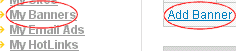
From
the members area, click the "My Banners" menu link, and
then click the "Add Banner" link (shown in
red).
|
 |
|
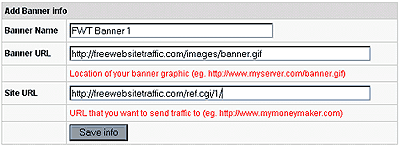
The
"Add Banner Info" menu must be filled out
correctly. It requires: - "Banner Name", -
"Banner URL" - "Site URL". Specify the details for
your banner, and click the "Save info"
button.
| |
 |
|
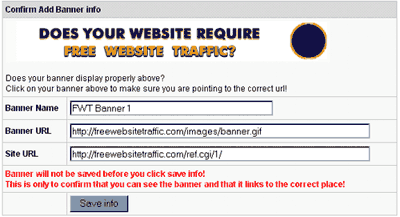
If you
have supplied the correct information, then you should be able
to see your newly added banner on display within the "Confirm
Add Banner info" menu. Click the "Save info" button to
proceed to the next step.
| |
 |
|
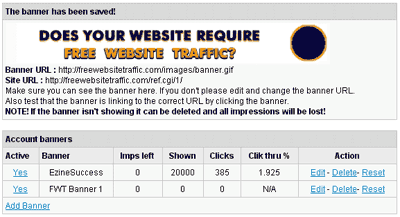
Your
new banner will be shown in your account. Whenever a new
banner is added to an account, zero credits are assigned to
it, so it's important to assign credits to put the banner into
rotation. You can edit, delete or reset the banner statistics
as
well.
| | Swapping
normal credits for banner impressions
 |
|
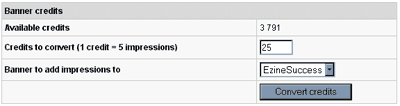
Enter the amount of
normal credits that you wish to swap for banner impressions, into
the box beside the banner name. In the example (left), 25 credits
are swapped for 125 banner impressions, at a swap ratio of
1:5
| Assigning Credits To Your Banners
 |
|
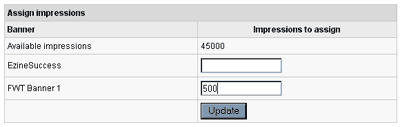
Type in the
quantity of banner credits that you wish to assign, in the box
beside the banner name. In this example (shown right), only 500
credits are assigned.
|
 |
|
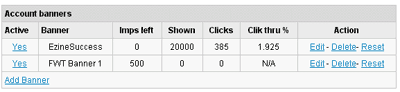
Your new
banner will be displayed along with any other banners that you may
have added. The banner (shown right) is now in
rotation.
|
|
 |