
 |
|
|
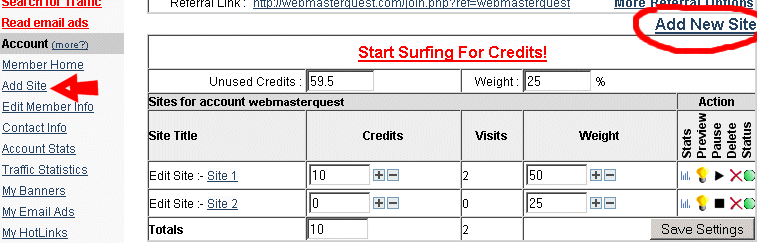
From the
WebMasterQuest menu, click on the "My Sites" link, followed
by a click on the "Add Site" link (circled below). This will bring
up the "Add new site"
options.
|
- Add unlimited websites, under these
conditions
- A maximum of a single
popup/pop under, or spawning window.
- The contents of each
website must be in English.
- No adult/illegal
material thanks.
 |
|
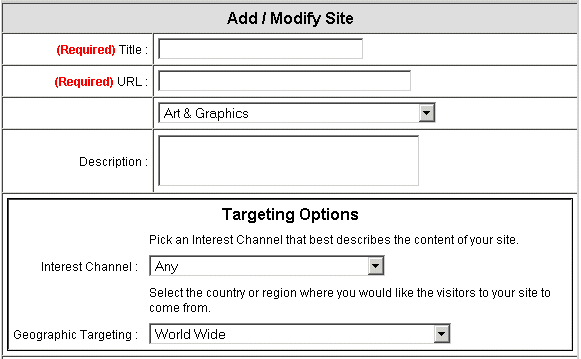
The
"Add new site" menu requires you to provide a
"Title" for your website, a URL (website
address), and a selection from the Site Category drop
box.
Choose a category that best describes your
site, and focus your
marketing. | |
 |
|
Once you have
typed in the details for your new website, you must then
"confirm" it. This process requires you to click the
"Confirm site" button. (shown left)
| |
Confirming your website
 |
|
WebmasterQuest then visits your newly added
website, and detects for multiple popups or frame breaking
code. Once the 15 second timer counts down to zero, click the
"Confirm" button, and the new site will be shown in your
account. | | Shown below is the newly added
website, having being confirmed, and with zero credits assigned to it. You
can preview or edit your website from the menu options.
|
 |